So recently I got an e-mail to my newly setup e-mail address, for just this reason  , from someone asking if I knew a way to do the following.

“I was trying to find a way to find all Incidents related to a specific person (assigned to or affected user) using PowerShell”
So, I decided the best to answer this with a blog post as maybe there are other people out there asking the same question. This is a quick solution using
get-scsmincident
At this moment in time, this will address ONLY incidents. I will work on some code using
get-scsmobject
to reference work items. I will add the pieces of code as I go and explain the code.
First lets start by importing the required module, SMLets can be downloaded here
import-module smlets
I am running these commands on a computer that is NOT the Management Server. So I need to specify a computer name when I am running these commands. So, in the next line I create a
$computername
variable to make my life easier. If you are running these commands on the Management Server, you can remove the
-computername $computername
piece of code. Below is how I created this, please use the name of your Management Server
$computername = “name of your Management Server"
Ok, so now lets get all active incidents. I will run a PowerShell Command to get all Incidents that are NOT EQUAL to “Resolved” or “Closed”. This allows us to cover all other incident statuses you may have created. Notice the –ne operator.
$allincidents = Get-SCSMIncident -ComputerName $computername | Where-Object {$_.Status -ne "resolved" -and $_.status -ne "closed"}
So now we have all the incidents in an object, now what????
Personally, I choose to sort the information, enter
Sort-Object
with Powershell. So, to elaborate a little further you can use
get-member
or “GM” for short and “pipe” your variable to “GM” / Get-member
$allincidents | gm
OR
$allincidents | get-member

Now you have a list of all the properties you can use. You can also go deeper into the ‘Members’ of the object. You can do the following as well
$allincidents.affecteduser | gm
It is simply a case of playing around and digging a little bit.
So now back to the
Sort-Object
. I wanted to sort by AssignedTo user, this can be easily changed by changing the
-Property
field of the
sort-object
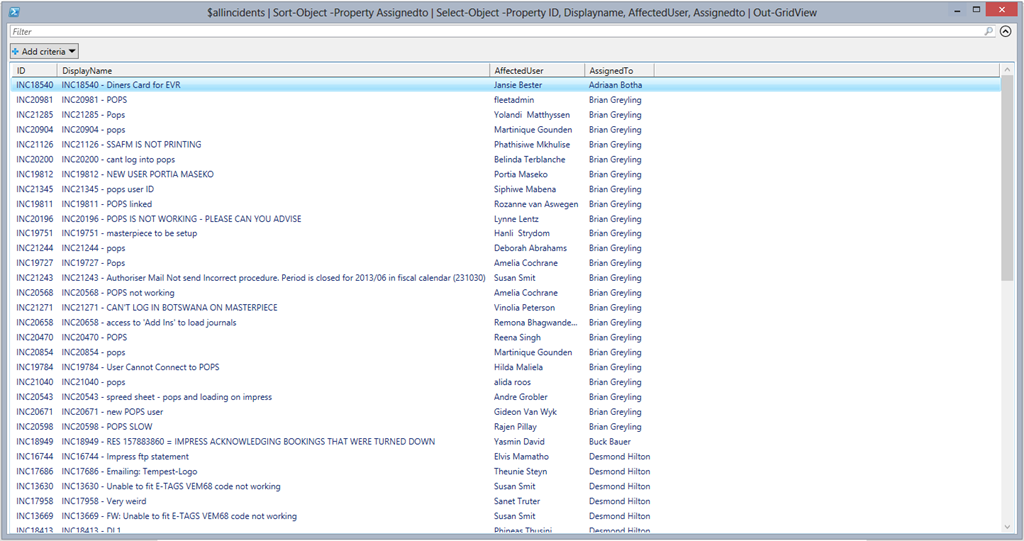
I also chose for this example to display the information in a useful grid. This too can be changed as needed.
$allincidents | Sort-Object -Property Assignedto | Select-Object -Property ID, Displayname, AffectedUser, Assignedto | Out-GridView
You will get some results like the below.
You can also limit the results by “Assigned To” user like such using either
-like
or
-eq
operators. Examples below
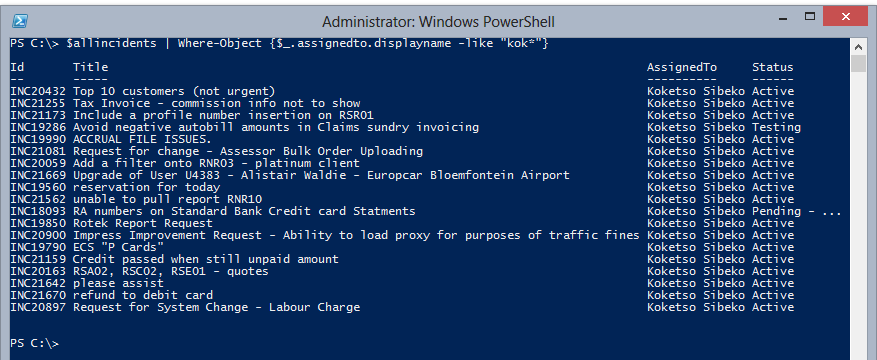
-like operator. The example is finding all calls assigned to a user where the name is like “Kok*”. This time without the “out-gridview”
$allincidents | Where-Object {$_.assignedto.displayname -like "kok*"}
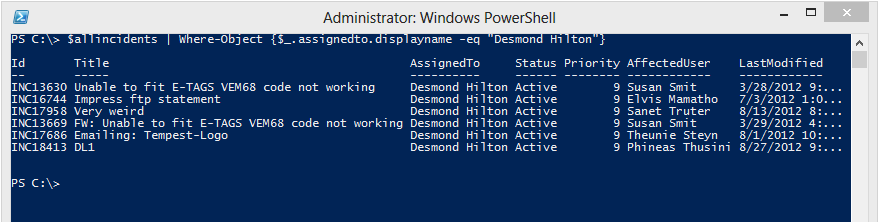
-eq operator. This example finds all incidents assigned to a user with a specific name. In my example I am using “Desmond Hilton”
$allincidents | Where-Object {$_.assignedto.displayname -eq "Desmond Hilton"}
The PowerShell code can be easily adapted to meet the requirements for the “Affected User”. We simply change the value to use with the current object like such. I use
$Get-member
on “Affecteduser”
$allincidents.affecteduser|gm
. Again you can use the
-like
or
-eq
operators
$allincidents | Where-Object {$_.assignedto.displayname -like "kok*"}
-like operator. In this example I am using the Name “like” Roland
$allincidents | Where-Object {$_.affecteduser.DisplayName -like "Roland*"}

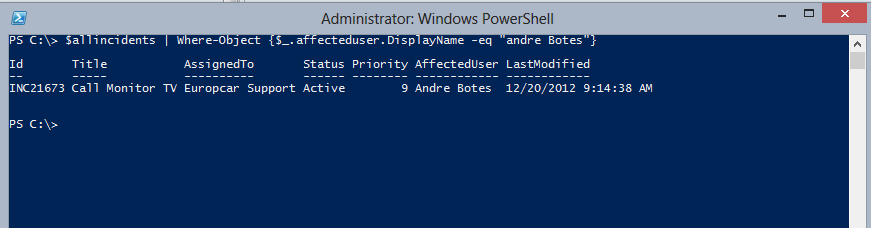
-eq operator. In this example I am using the “Affected User” name of “Andre Botes”
$allincidents | Where-Object {$_.affecteduser.DisplayName -eq "andre Botes"}
This should help you to make more in-depth queries and enjoy using PowerShell and SMLets to get valuable information from System Center Service Manager.
I have also setup an new e-mail address to help with Service Manger queries. you can e-mail me at systemcenterguyza ”at” live ”dot” com (systemcenterguyza@live.com) and I will assist as much as I can.
I have also setup a new Twitter account to focus the Information around the System Center Suite.


Follow me.


 Fletcher's Cloud Blog
Leave a comment